You can now bulk update attendance for multiple students by using the selection tick box and the Bulk Actions option.
What's New
- Reintroduced the Select tick box for students.
- Select multiple students at once and apply an attendance update using Bulk Actions.
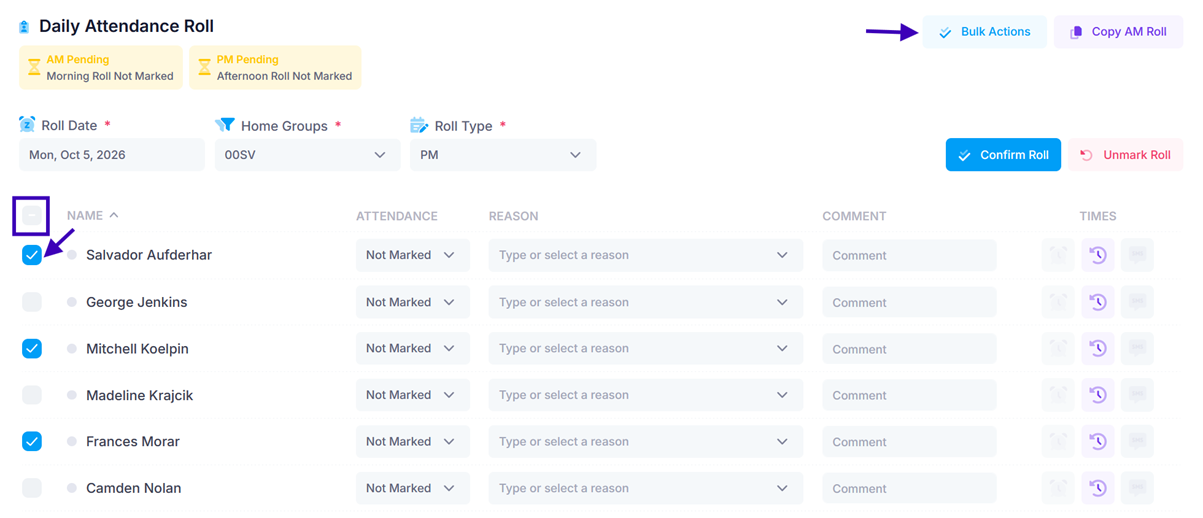
1. Select the students: Select the required students using the tick boxes, then click the Bulk Actions button
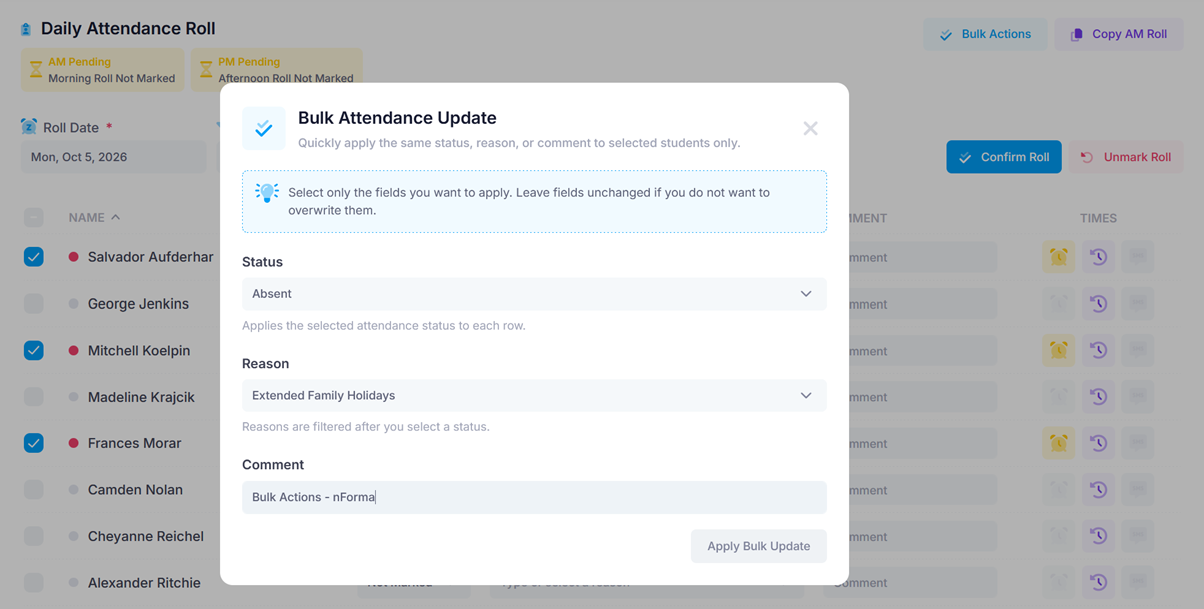
2. Enter the attendance details: Complete the required fields and click Apply Bulk Update.
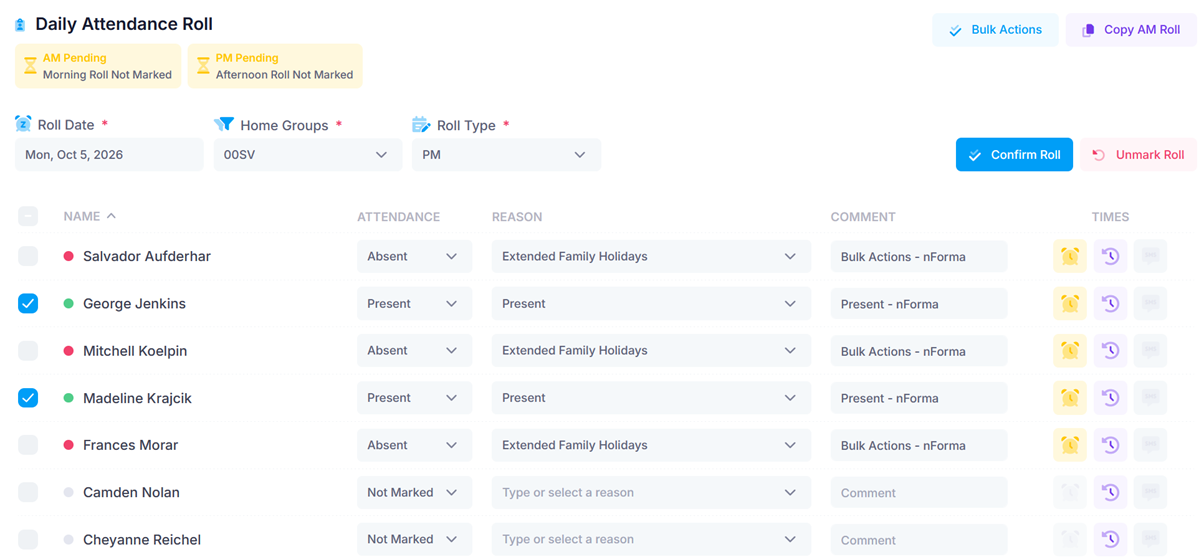
3. Attendance updated: The attendance roll will now be marked for the selected students.
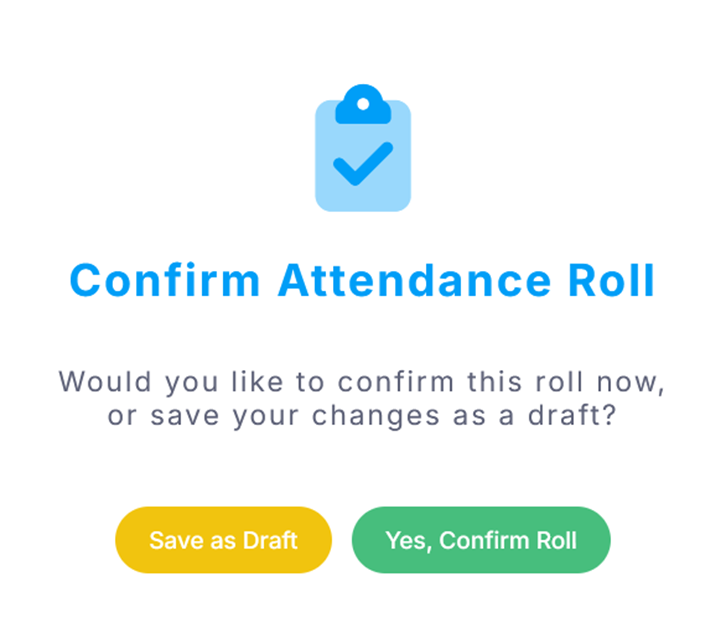
4. Confirm Roll: Save as Draft or Confirm Roll
Was this article helpful?
That’s Great!
Thank you for your feedback
Sorry! We couldn't be helpful
Thank you for your feedback
Feedback sent
We appreciate your effort and will try to fix the article