TABLE OF CONTENTS
- ATTENDANCE OPTIONS
- MARKING ATTENDANCE
- LATE ARRIVALS AND EARLY DEPARTURES
- ROLL LOGS
- FUTURE ATTENDANCE
- UNEXPLAINED ABSENCES
ATTENDANCE OPTIONS
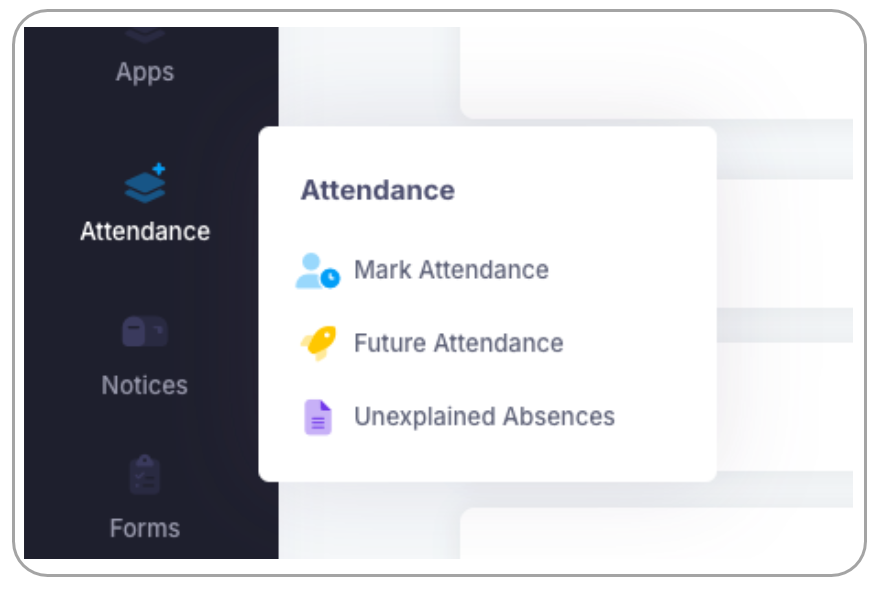
Teachers have the same options in the nForma portal roll as in the old nForma roll. There are 3 different
areas to the nForma portal roll for teachers:
Mark Attendance
Where both admin and teachers can mark the daily attendance roll
Future Attendance
Where both admin and teachers can mark a student’s future attendance and recurring absences
Unexplained Absences
A page to view roll statuses and students who are marked as absent unexplained
MARKING ATTENDANCE
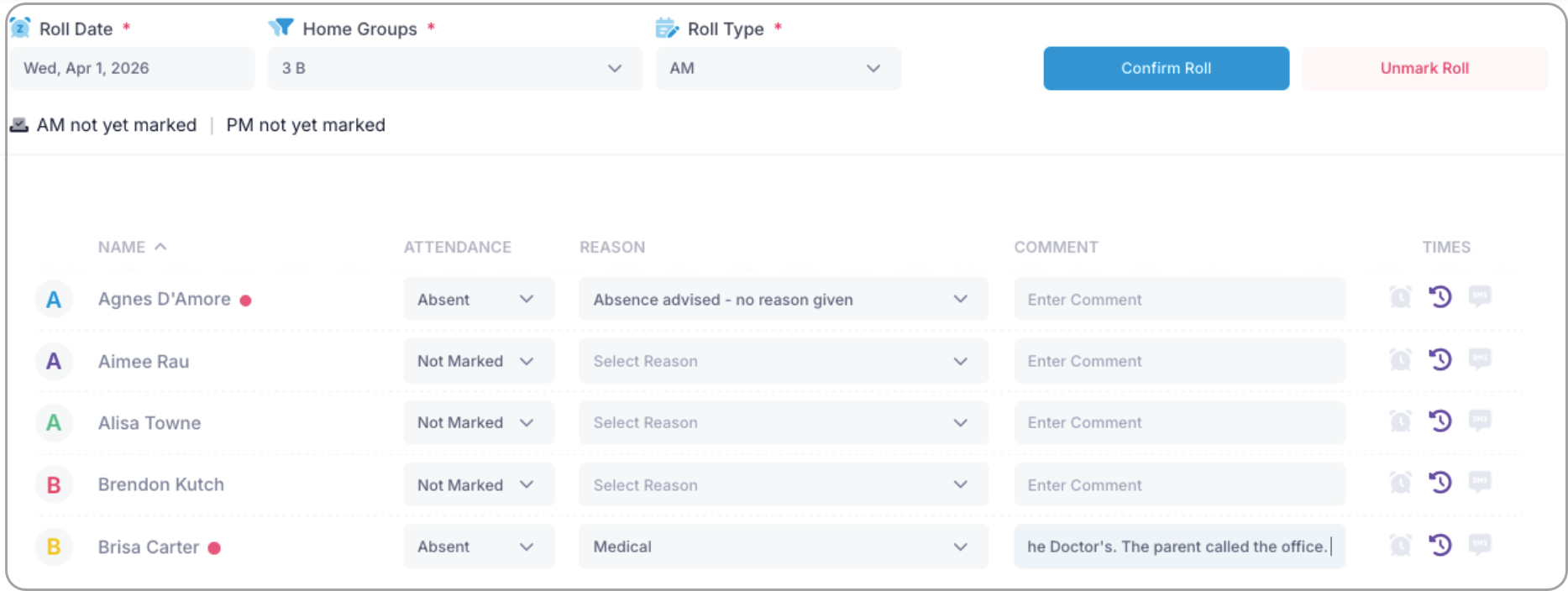
The attendance roll is available to all users to mark. Staff will be able to select the date, home group and
roll type. The quickest way for a teacher to mark the roll would be to mark all the student absences first.
Once done, confirm the roll via the blue "Confirm Roll" button.
They will then be prompted with a message asking if they would like to mark all remaining students as “Present”.
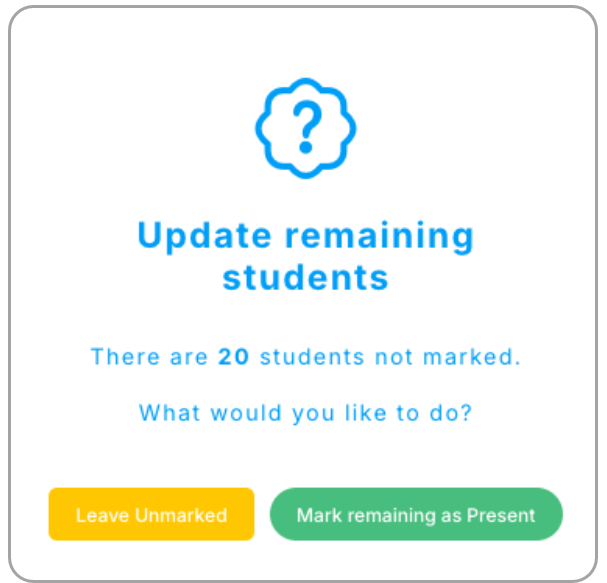
Accept the message and then the roll will be marked.
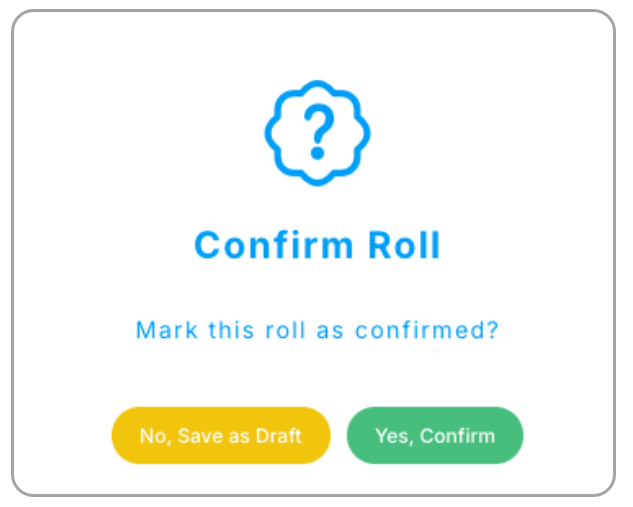
Roll Updated.
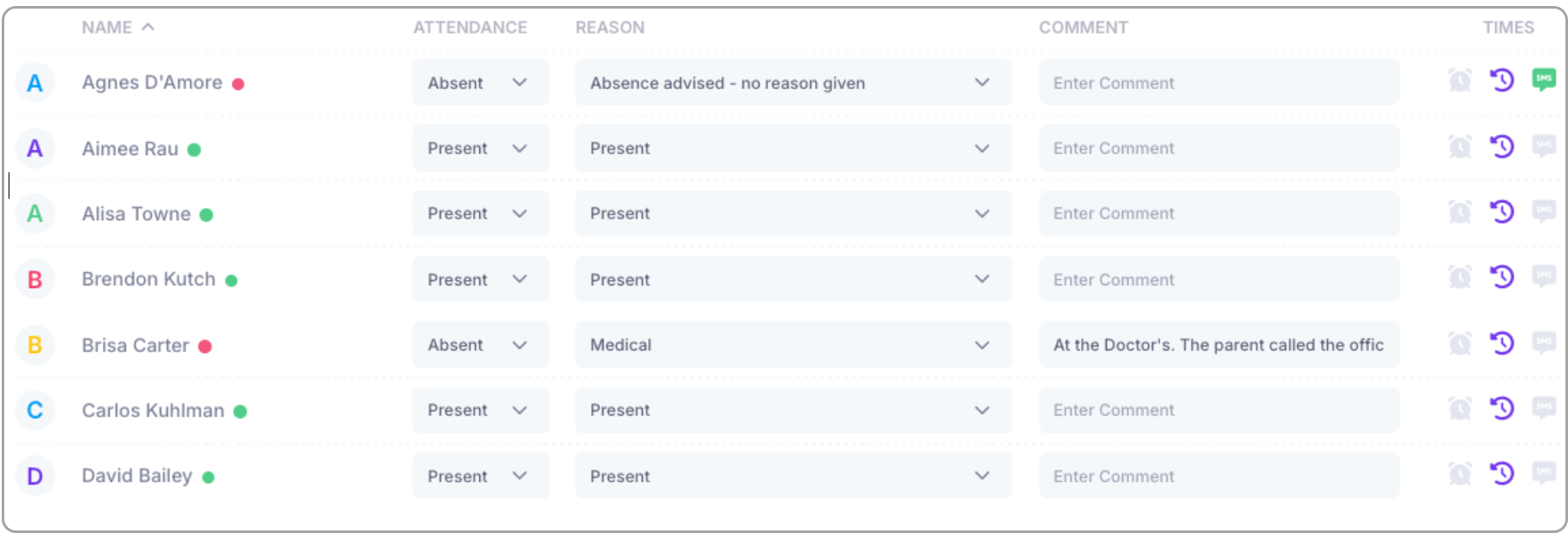
Note: There is no “Communication type” in the new roll. All communication notes can be added to the “Comment” section of the roll.
LATE ARRIVALS AND EARLY DEPARTURES
Late arrivals and early departures are marked differently in the attendance roll. To mark a student as
late arrival or early departure, select the “Present” attendance type and the related reason type. Once
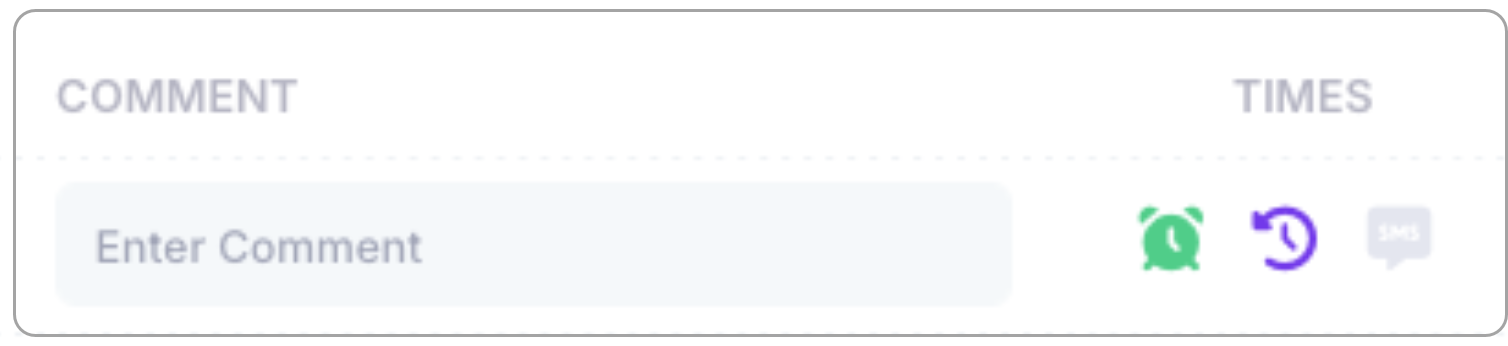
done, you will then need to click on the clock icon.

Under the first option, input the time and then the reason again and save.
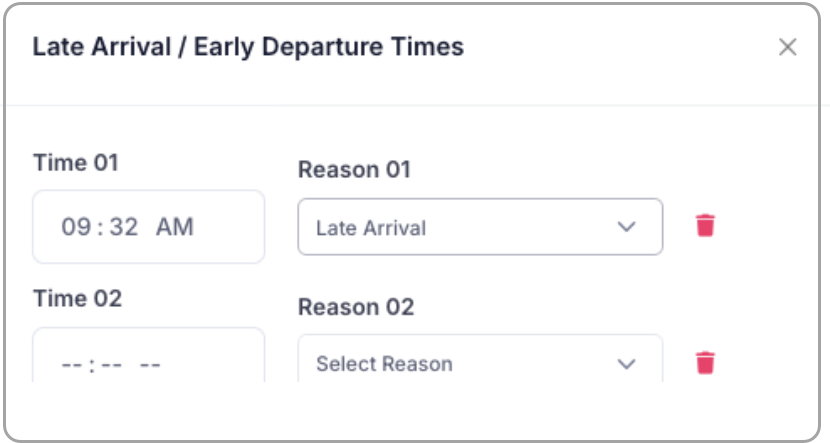
You will then see the icon turn green. This option will allow you to also sign a student out if they leave early and can also sign them back in.
ROLL LOGS
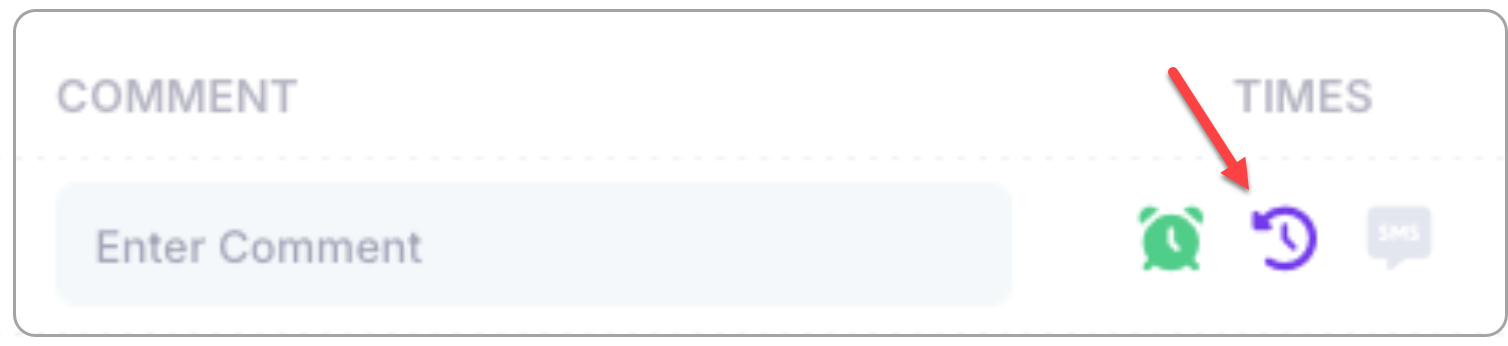
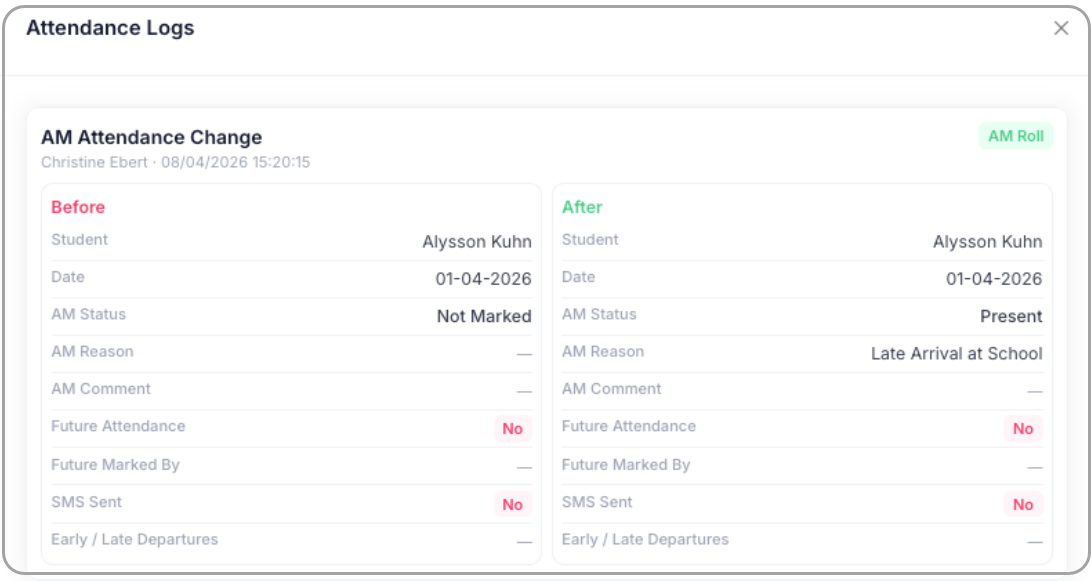
Once a roll has been marked, you will have access to the roll logs. This will show all changes that have
been made to a student’s attendance record. To access the logs, click the middle purple icon next to the
alarm clock.
FUTURE ATTENDANCE
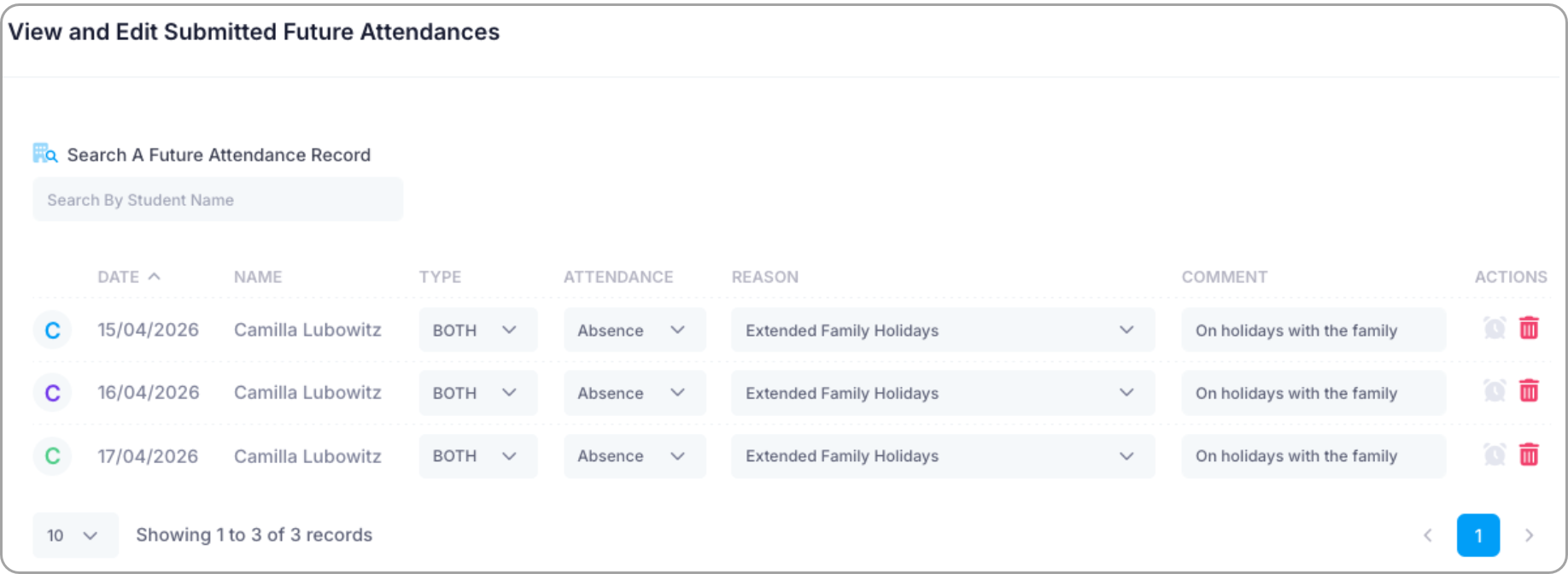
Marking a student’s future attendance can be done by clicking the “Future Attendance” option. Fill in all
the options and then “submit”. The record will then be displayed in the window below. All future and
recurring absences for the year will be displayed in that window.

If any records need to be edited, you can simply update the records via the drop downs.
UNEXPLAINED ABSENCES
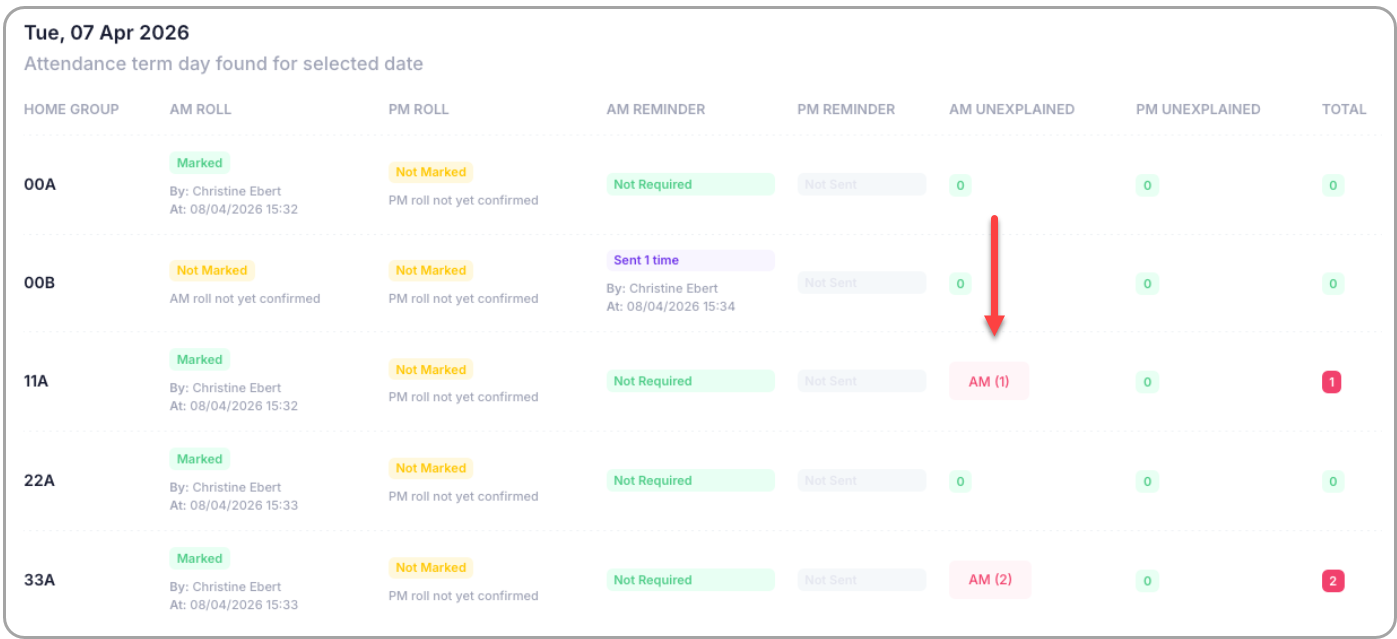
The unexplained absences page will allow admins to view which rolls have not been marked and which
students have been marked as absent and unexplained. It will also allow admins to send reminder
emails to teachers who have not marked their respective rolls.
To view the students marked as unexplained absent, click on the red AM buttons. The students will then
appear there.
Was this article helpful?
That’s Great!
Thank you for your feedback
Sorry! We couldn't be helpful
Thank you for your feedback
Feedback sent
We appreciate your effort and will try to fix the article