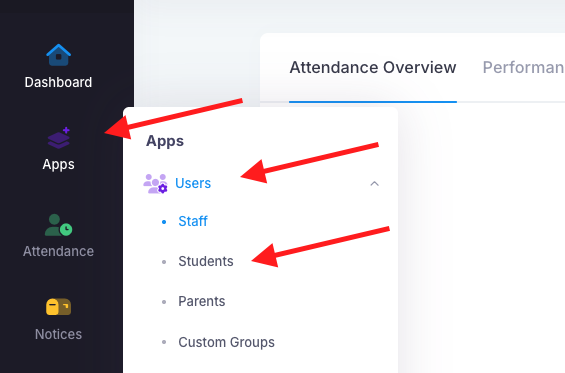
Go into Apps > Users > Students
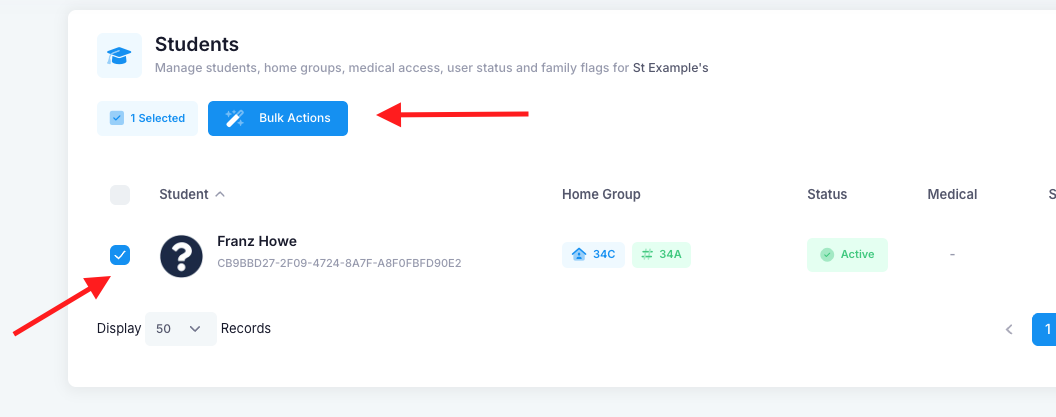
Search for the student and then click on the tick box to the left of their name. You will then see a "Bulk Actions" button, click on that.
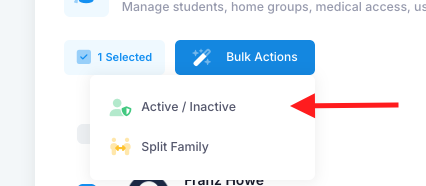
Select the "Active/Inactive" option
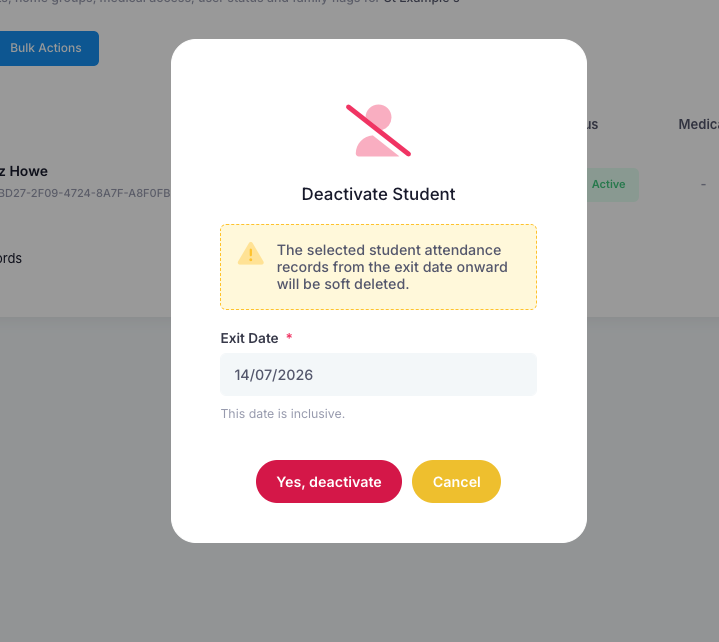
Insert the date. Note: This date is inclusive, so if the student's last day that they attended the school was 13/07/2026, make the date 14/07/2026.
Was this article helpful?
That’s Great!
Thank you for your feedback
Sorry! We couldn't be helpful
Thank you for your feedback
Feedback sent
We appreciate your effort and will try to fix the article