Manage Days is where admins can go in and mark “non-school days”. To mark a non-school day, click on the “Manage Days” option. Go to the term and find the day. Click on the dropdown and select “Student Free Day”. You will notice that Public Holidays are already in the system, they will not need to be entered.
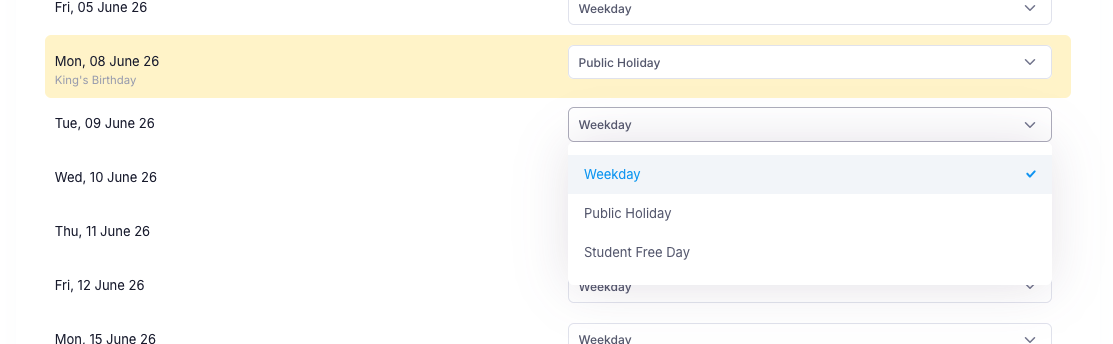
If you receive an error, it means there is a student absence recorded. Follow the below steps to fix this.
- Click on the "Attendance" module then "Reports"
- Select the Daily Roll report
- Put the date in the filter that you are trying to mark as student free
- Export the report to show all classes that have an attendance marked
- Click back on the "Attendance" module and "Mark Attendance"
- Select the date, home group and roll type from the drop down selectors
- Click the red "Unmark Roll" button and confirm

8. Repeat the unmarking for all rolls with attendance
9. Once done, go back into the "Manage Days" area and mark the date as student free
Was this article helpful?
That’s Great!
Thank you for your feedback
Sorry! We couldn't be helpful
Thank you for your feedback
Feedback sent
We appreciate your effort and will try to fix the article