To add a student to a form that is linked to a Custom Group:
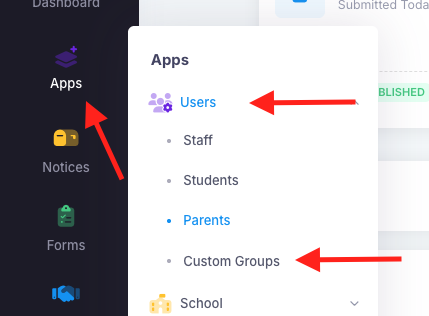
1. Go into "Apps", "Users" then "Custom Groups".
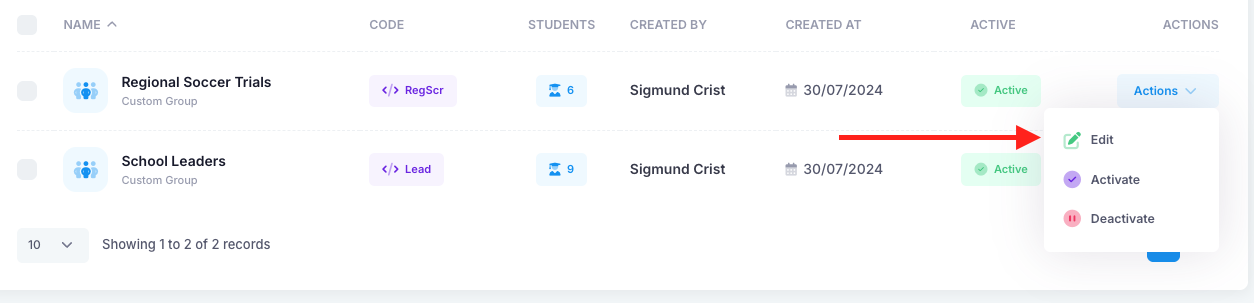
2. Find the Custom Group that is linked to the form, click on "Actions" then "Edit".
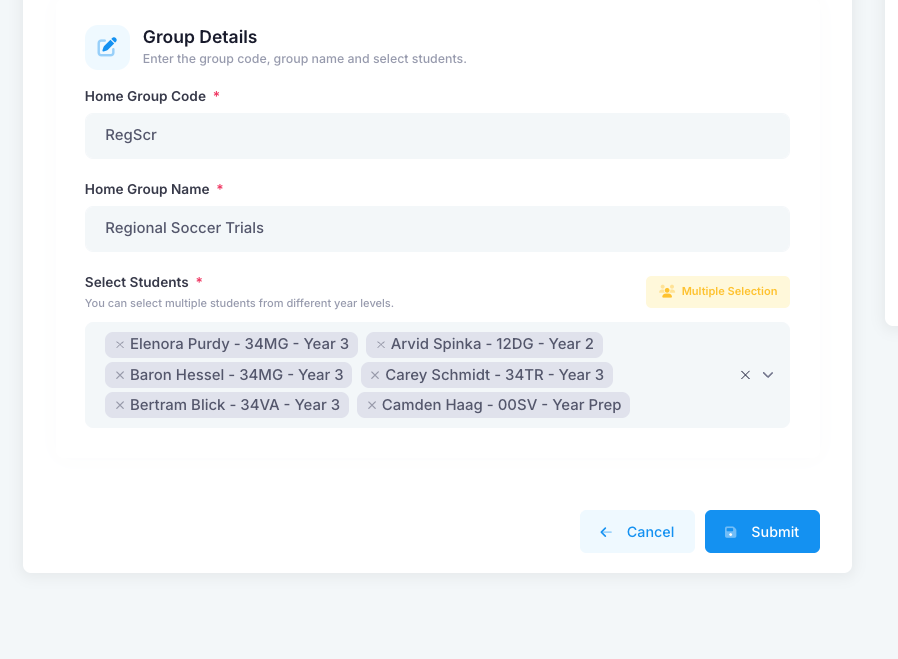
3. Add the student(s) into the Custom Group and "Submit".
4. Go into the "Forms" module and find the form that needs changing.
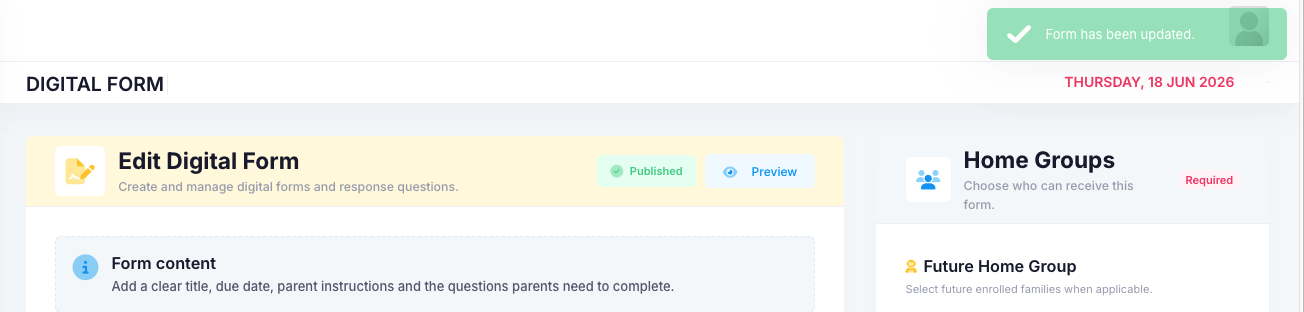
5. Click on "Actions", "Edit" then "Save" the form. You should see a green pop up saying the "Form has been updated".
6. Go back to the Forms dashboard. Click on "Actions" then "Responses". You should then see the new student is part of the form.
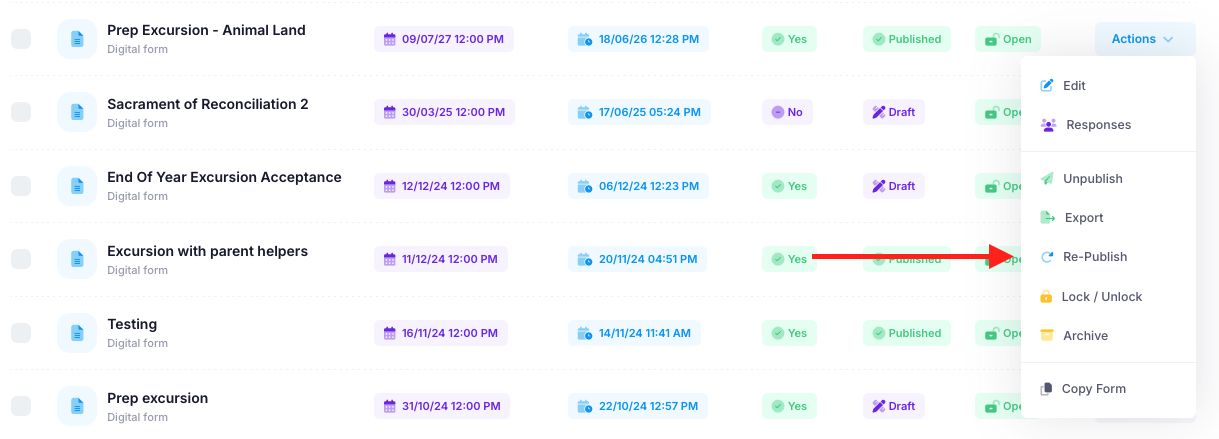
7. Finally, go back to the "Forms" dashboard, click on "Actions" and then "Re-Publish". This will then send out the initial email to the new student informing their parents that there is a new form that needs attending to.
Was this article helpful?
That’s Great!
Thank you for your feedback
Sorry! We couldn't be helpful
Thank you for your feedback
Feedback sent
We appreciate your effort and will try to fix the article