The Newsletter is not available as a link to the articles via an icon on the APP.
To assimilate this, simply create a Notice that will be used as the link to the Newsletter articles.
- Create a NOTICE via the "Maintain Notices" button
- Enter the Title
 Preview TEXT
  and upload your newsletter icon for the Image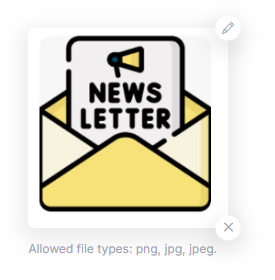
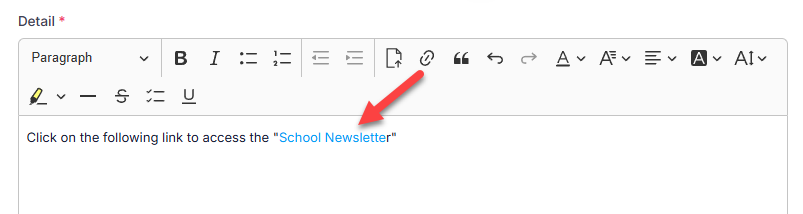
- In "Detail" enter a statement similar to "Click on the following link to access the "School Newsletter" (where the word "School Newsletter" will be a hyperlink to the school public newsletter URL).
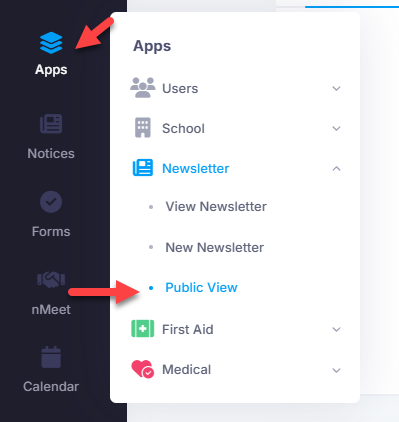
- Your public view URL address for your newsletter can be found at:
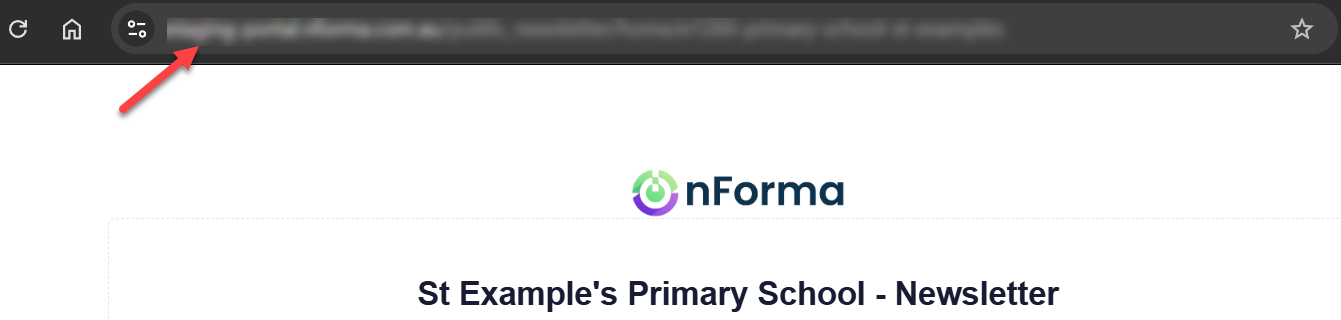
- Copy the actual URL address
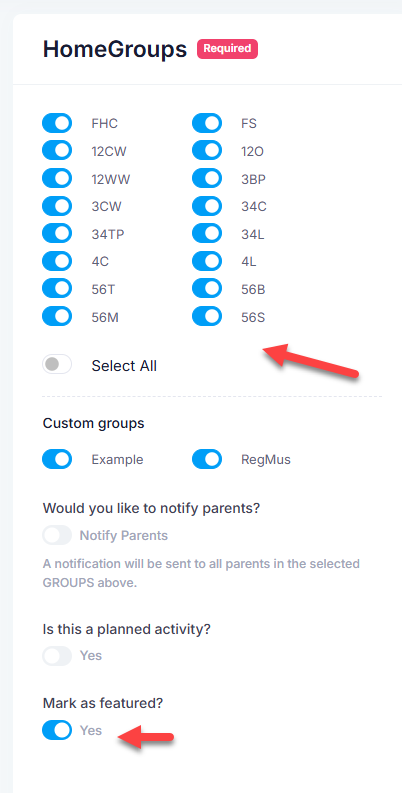
- Select the Home Groups that you want to send a notification about the newsletter being ready to be viewed by the school community. "Mark as featured" if you want to pin it to the top of the notices list on the dashboard
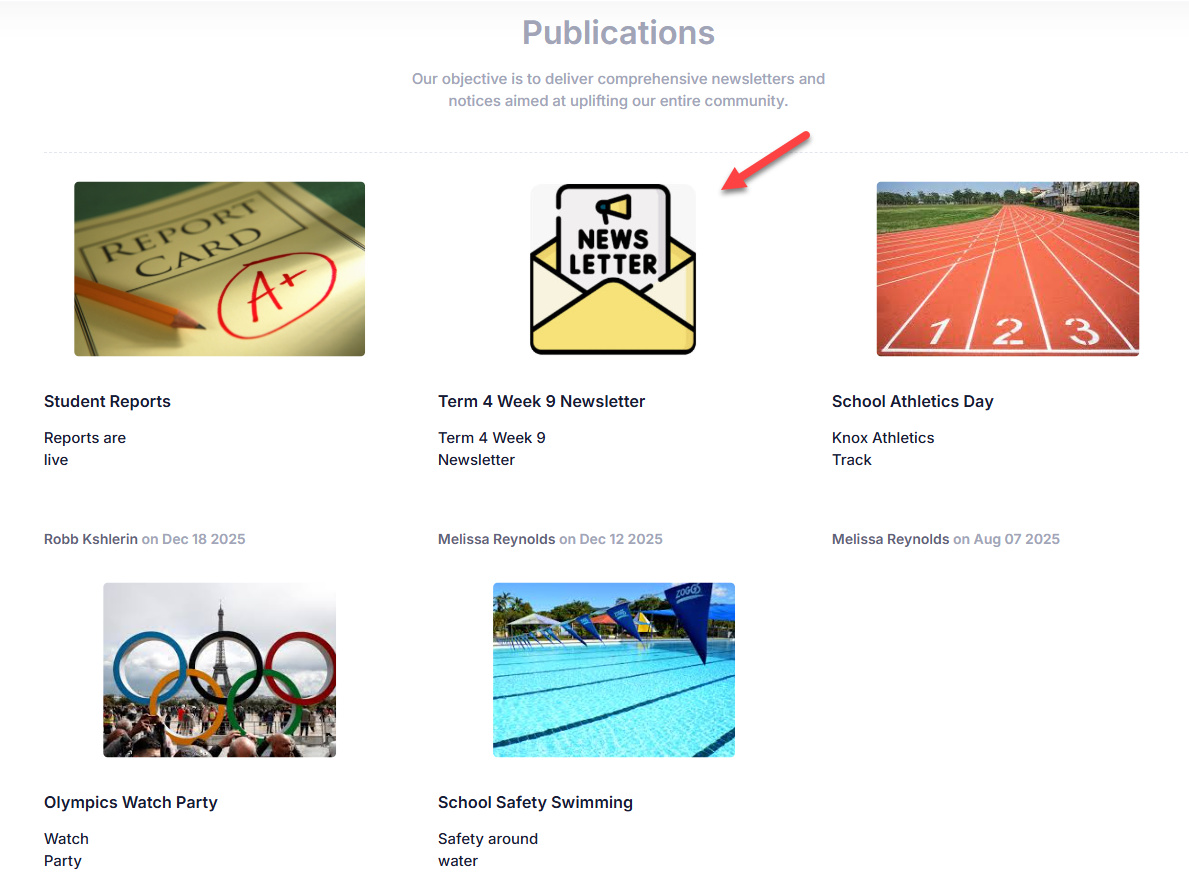
- Once saved and published as a notice, it will appear on the dashboard
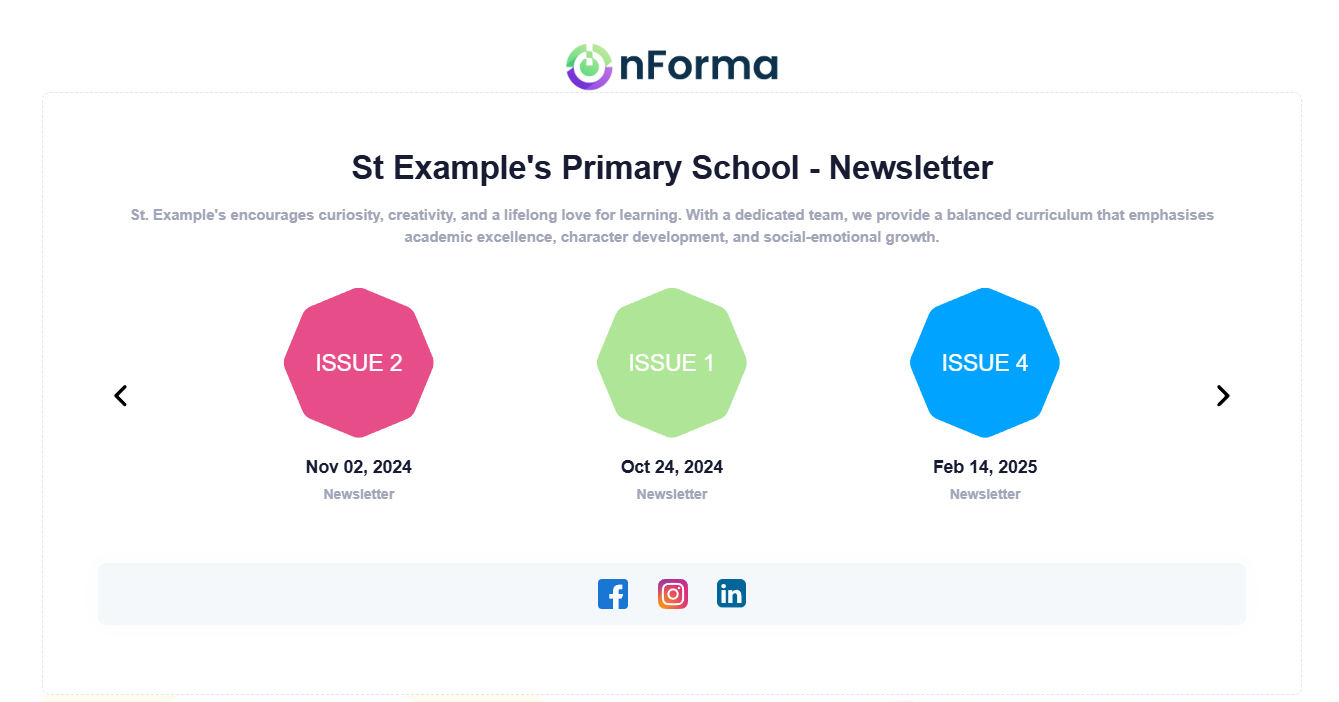
- Click on it and it will open the link to the Newsletters via the Notices icon
Was this article helpful?
That’s Great!
Thank you for your feedback
Sorry! We couldn't be helpful
Thank you for your feedback
Feedback sent
We appreciate your effort and will try to fix the article